Accessing Reports in DAISEY
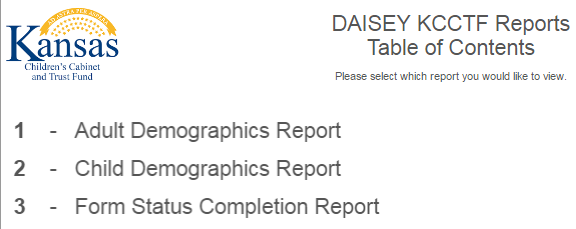
To access DAISEY reports, click the “Reports” link in the left navigation menu (Figure 1). A “Reports Table of Contents” will be displayed (Figure 2). Available reports are displayed in the “Table of Contents”. Click the name of the report to view. The report will open in a new browser tab. Users can keep reports open while navigating in DAISEY to update client information or correct errors. If there are multiple sections to the report, these will be listed on the top of the screen in the selected report (e.g., Figure 3).