Using Filters
Depending on the report, a filter navigation menu is displayed either on the top or the right side of the report.
How to use filters on specific reports will be reviewed in individual report guides. In general, filters may allow you to select from drop-down menus, to type into a text box, to adjust sliders (e.g., to set a date range, Figure 4), to enter a Start and End Date (Figure 5), or to utilize a pop-up calendar (Figure 6).


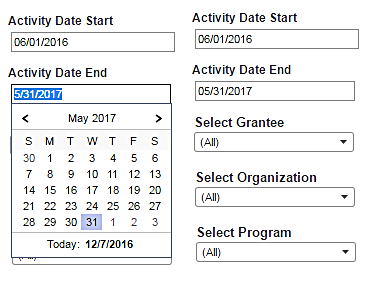
Click in the text box to type in date of interest or select from pop-up calendar.
When a filter is applied, the report will automatically refresh to reflect the filter. If adjusting multiple filters, to verify that all filters have been applied to the report, click “Refresh” at the bottom of the screen (Figure 7). To clear all filters, select “Revert” on the bottom of the screen (Figure 7).
